• Home
  • Blogger
  • Github
  • Travel
  • The Tank Project
skip to main | skip to sidebar

Steven Occhipinti

A braindump.

Git + Hub = GitHub

As mentioned in a previous post, we use GitHub-Flow at work and I really like it.
In essence, it involves doing work in feature branches, while maintaining an always deployable master branch, then opening a pull request to merge a new feature / bugfix into master, which provides a great mechanism for code review / sign-off.

So a fairly typical situation would be as follows:
  • Bug found in app
  • Create an issue on GitHub with description, assignee, etc.
  • Create a new branch off master for the fix
  • Code it up, test locally, etc.
  • Push branch to GitHub
  • Open pull request to merge back into master
  • Get review / sign-off inside of the pull request
  • Deploy
When a pull request is opened on GitHub, it automatically creates an issue for that pull request, which would normally be helpful, but we already created an issue when the bug was discovered.
So now we have 2 issues and 1 pull request. What's nice is that if I push more commits to that branch, it will appear in the pull request automatically, but not the initial issue.

After looking into this, it seems (AFAIK) GitHub do not provide a way of attaching a pull request to an existing issue via the site, but they do provide that functionality via their API.

That is when I discovered Hub.
Hub is a wrapper for git and while it adds more power to alot of the standard git commands, hub adds one command that is really useful for me:

git pull-request -i 49

This basically means "Open a pull request to merge the current branch into master and attach the pull request to issue 49".

This means that the initial bug description, the commits, the review conversation and the merge are all encapsulated in a single issue - fantastic!
I don't know why this isn't built in to the web interface (or maybe it is and I just don't know how).
Posted by Steve at 13:37 0 comments
Labels: git , github Email This BlogThis! Share to X Share to Facebook

Copy and Paste over SSH with Xclip

Have you ever SSH'ed to a server and found you need to copy some data back where a simple selection copy and paste just doesn't seem practical?
When this happens to me, I normally dump that data to a temp file, start up another terminal and SCP the file back before going back to delete the temp file, but I recently found a better way.

I discovered xclip. Using the -X option of SSH to enable X11 forwarding, xclip allows you to interact with the "X selections" clipboard.

To use it, log on to a remote server via ssh -X and ensure xclip is installed, then simply pipe data to xclip and you will be able to paste it anywhere locally with the usual X selection paste (mouse wheel click, shift-insert, etc.).

Here is an example:

ssh -X steve@example.com
sudo apt-get install xclip
ps -ef | xclip

Now anywhere on your local linux machine, you can press <shift>-<insert> (or mouse wheel click) to paste the content.
If you need to pipe this data to another process locally, you can retrieve the clipboard from the command like with xclip like this:

xclip -o | less
Posted by Steve at 23:59 0 comments
Labels: linux , xclip Email This BlogThis! Share to X Share to Facebook

Minecraft exception in linux


I finally decided to install Minecraft on my new shiny Toshiba Portege z830.
Ubuntu ships with an open-source version of Java, which did run Minecraft, but the graphics were terrible, even on the lowest settings. There were artefacts everywhere!

So as recommended, I switched to the official JRE, but now the login screen works, but that's about it. After logging in, I just got a black screen and the following exception in the console:


Exception in thread "Minecraft main thread" java.lang.ExceptionInInitializerError at net.minecraft.client.Minecraft.a(SourceFile:180) at net.minecraft.client.Minecraft.run(SourceFile:648) at java.lang.Thread.run(Thread.java:662)
Caused by: java.lang.ArrayIndexOutOfBoundsException: 0 at org.lwjgl.opengl.XRandR$Screen.<init>(XRandR.java:234) at org.lwjgl.opengl.XRandR$Screen.<init>(XRandR.java:196) at org.lwjgl.opengl.XRandR.populate(XRandR.java:87) at org.lwjgl.opengl.XRandR.access$100(XRandR.java:52)at org.lwjgl.opengl.XRandR$1.run(XRandR.java:110) at java.security.AccessController.doPrivileged(Native Method) at org.lwjgl.opengl.XRandR.getConfiguration(XRandR.java:108) at org.lwjgl.opengl.LinuxDisplay.init(LinuxDisplay.java:618) at org.lwjgl.opengl.Display.<clinit>(Display.java:135)
... 3 more

After discussing the problem in IRC, the solution was quite simple. It turns out "lwjgl" is a "Light Weight Java Game Library" and the version I had wasn't behaving.
On the advice of the helpful IRC'ers, I downloaded the latest "lwjgl" from here (which at time of writing is 2.8.3) to get it all to work nicely.

To install it, I downloaded the zip file, extracted it to a temporary directory, then copied across these files:
cp lwjgl-2.8.3/jar/lwjgl.jar ~/.minecraft/bin
cp lwjgl-2.8.3/native/linux/* ~/.minecraft/bin/natives
Done! Now it works nicely.
Posted by Steve at 23:25 20 comments
Labels: java , linux , minecraft , ubuntu Email This BlogThis! Share to X Share to Facebook

Toshiba Portege Z830

If you saw my last post, you would have seen that I recently bought a 13" Samsung Series 9 ultrabook - I still think these machines are stunning!


The problem

There are a couple of little complaints floating around about the Samsung, like heat output, easily finger-printed chasis, but none of these really bother me, but there is one thing that does... alot... and its the wifi!

I could be using the laptop in the next room from my wireless router and it would dropout completely or go incredibly slow, if I move to the other side of the house where my bedroom is, my phone will have full reception, but this laptop will not see the wifi network at all - and this in unacceptable.


The transition

After returning the laptop (twice) I eventually asked for my money back so I could go purchase my second preference - the Macbook Air.
Unfortunately, the shop would not give me a full refund and could only offer me a credit note.
I tried to explain that no other units in store could offer me the same specs that I was after, the Samsung's best competition is the Macbook Air, but as they couldn't help me I asked to see what else they have in a light 13".

The sales guy showed me an Asus Zenbook and a new product which had just arrived to their store, the Toshiba Portege Z830.
I was lucky enough to be the first to see this at their store and even got to open the display model and check it out.

The decision between the two was tough!
The Asus Zenbook had a very sturdy exterior and had a similar tapered design to the Macbook Air while the Toshiba Portege had a business feel to it, but was slightly lighter and thinner.
They were both similarly spec'ed with Core i5's, 128GB SSD's and 4GB of RAM, but there were a few notable differences between them.

Although the Asus Zenbook does not have a backlit keyboard and has reduced size ports, it does has a higher resolution screen than the Samsung and Toshiba, but like the Mac it's a glossy screen. I personally prefer matte screens because even in brightly lit areas or even outside in direct sunlight, the screen is alot more visible.

The Toshiba Portege has a matte screen, backlit keyboard, has a full size HDMI port, VGA port, Ethernet port, 2x USB 2.0 ports, 1x USB 3.0 port and SD card reader and its thinner and lighter. Toshiba also give a 3 year warranty out-of-the-box with this model.
The screen is quite a bit more flimsy than the others and the system fan does tend to groan a little (compared to the Samsung at least), but this is probably all I can complain about.


The solution

I took a day to think about it and eventually made up my mind for the Portege.
In the US, there is an i7 variety with 6GB of RAM, but I don't really want to wait for it to get here.
I took a look at a comparison between the i7 from the Samsung and the i5 from the Toshiba, and while I would have paid the extra for the i7, I don't think I'll really notice the difference in most scenarios.

It seems I am not the only one who ended up swapping a Samsung Series 9 for a Toshiba Portege Z830 either, I came across this blog post where the author goes into more detail and provides results of quite specific tests.

In the end I paid $1539 for the laptop with a 3 year warranty and then an extra $79 to upgrade it to 6GB of RAM.
While it's no Samsung Series 9, its pretty nice and the cut in performance saved me a little more than $600.
Posted by Steve at 18:21 7 comments
Labels: hardware , Mac , review , Toshiba Portege Email This BlogThis! Share to X Share to Facebook

13" Core i7 Samsung Series 9 Ultrabook

Back in my first year of uni, I bought one of the early Core Duo (not Core 2 Duo) 15" Asus laptops which at the time was great and it had a decent graphics card for games, etc.
Roughly 6 years later, its showing its age. The battery lasts less than an hour now, it weighs about 3kg not including the adapter and performance is lacking compared to todays technology.

After a recent shoulder injury and a busy week that involved me carrying my laptop from place to place, I decided it was time to reward myself with an early Christmas present and buy a new machine.

My requirements were:
  • 13" screen
  • As thin and as light as possible to aid portability
  • Powerful enough to do almost anything my daily activities could involve
  • <~ $2000
I compared as many of these 13" "ultrabooks" as I could and before long I had created a shortlist of my top 3 - which included an Asus u-Series, a Macbook Air and a Samsung Series 9.


Asus u-Series

The Asus machines, as usual, had a very good bang-for-buck, a nice thickness of 19mm and unlike most others, some models had full size video output and ethernet plugs.
While the price and size were right, the highest spec'ed machines were not quite as impressive as its competition. If budget was the number one concern, the Asus u-Series and Zenbook range offer pretty good value.


Macbook Air

I have never been a "Mac person" due to the traditional heavy pricing and proprietary nature of alot of their products, but these days (after some convincing) I believe the hardware and even price does have a surprisingly strong position in the competition.
The 13" Macbook Pro and Macbook Air both had very good specs to offer for around the $2000 price tag, both with Core i7's, 4-8GB RAM and SSD's, not to mention pretty attractive packaging.
After seeing a Macbook Air up close, I really liked how the thickest point is about 17mm or so at the back but it tapers off to next to nothing at the front.

So the model I chose for comparison purposes was worth $1928.99 and had the following specs:
  • 1.8GHz Dual-Core Intel Core i7
  • 4GB 1333MHz DDR3 SDRAM
  • 256GB flash storage
  • Mini DisplayPort to DVI adapter ($30)
I don't like the very proprietary DisplayPort and its $30 adapters, but its not too bad as almost everyone at my office uses a Mac so finding a spare adapter when needed wouldn't be too hard (I guess popularity offsets proprietary-ness).

The operating system did not bother me too much either as I intended to be running Linux as my primary OS anyway, but having a Mac would give me more familiarity with OSX which would be helpful considering its popularity in my line of work.

The minor annoyances would be: expensive adapters for video and ethernet ports, unfamiliar keyboard layout (command key where alt should be, etc), non-upgradeable ram, glossy screen, etc. - but those are pretty minor.


Samsung Series 9

I found these ultrabooks to have a very unique look and one of the first well thought out, thin designs that are not just another Mac look-a-like.
The sales pitch always includes a spiel about its "Duralumin"- which is a light and strong material used in aircrafts and while it looks stunning and adds sophistication and uniqueness to the overall design on the unit, this material along with the black plastic are both fingerprint magnets!

The specs of the Series 9 unit I used for comparison (and ultimately bought) was quite good:
  • 1.5GHz Core i7
  • 8GB RAM
  • 256GB SSD
  • Micro-HDMI to HDMI adapter ($15)
Initially I thought 1.5 GHz was kinda low, but after conversations with quite a few people and some research, this speed is its sort-of "resting" frequency and will automatically scale up to 2.6GHz when required.

The one big catch with this system is the RRP of ~$2700, while most Aussie shops sold them for ~$2500. This made me consider the Mac even more!

But during my research I saw MLN's price drop down to a much more attractive $1997 and immediately rang them to find out more details and how long the special would last. It turns out that Samsung are starting to phase them out of stores (presumably to make way for a new product next year) and naturally they had sold alot of units and only had a few left.

I did a bit more research and found that to save space, the ports are hidden behind very aircraft-like flaps, but as with the Mac, they are reduced size ports.
The video output is provided in the form of a micro-HDMI port - which is at least a more common format and I don't need to go through apple.com.
The other space-saving trade-off was a (sadly) proprietary ethernet port that comes bundled with an adapter to convert it to RJ45 - but unlike the Mac where you need to buy a USB network adapter, this actually has the network card built in, it just has an unusual plug - which I don't intend to use much anyway.

Another plus is this model comes with 1x USB 3.0 port (and a 2.0 port) which is great considering the speeds my brother gets with his USB 3.0 flash drive.

So I went to MLN and inspected the unit up close and what eventually made my decision for the Samsung was that for about the same price I get a machine with double the RAM (handy for VMs), a windows licence for portable gaming and a bunch of freebies from MLN including the HDMI to micro-HDMI cable, a set of Sennheiser headphones and a padded sleeve to carry it.

I was able to get the cable and sleeve free because I opted to purchase the extended 3 year pickup warranty for an additional $180ish and the headphones were a Christmas present :)

Initial impressions are very positive, the screen is incredibly bright and vibrant and with a smooth matte finish, I have had no issues using it outdoors.
The backlit keyboard is quite nice too, although the brightness of this light is controlled via windows drivers, so in linux (at this stage) I cant control its brightness.
The touchpad is large and seems to employ the same technique as the Mac Magic Mouse where there is one click-able button (the lower part of the pad) and depending on where your finger is when you click determines a right or left mouse click and once again, this doesnt work in Linux out of the box, but the standard 2 finger tap works as per normal.
Using Ubuntu 11.10 the rest of the hardware works out of the box, so no need to fiddle with drivers for network, graphics, webcam, etc.

Overall I am very happy with my purchase and its a huge step up from my old 15.4" 3kg laptop!
Posted by Steve at 11:34 0 comments
Labels: hardware , linux , Mac , review , Samsung Series 9 , ubuntu Email This BlogThis! Share to X Share to Facebook

Removing geotag data from JPGs

Just a quick note, these days most cameras automatically geotag photos which is pretty cool, especially when taking travel photos, but sometimes you may not want everyone to know where a photo was actually taken.
For example, a photo of your backyard could give away your home address which is probably not a great thing.

Its really easy to clear the geotag data with a great little tool called exiftool.
I used this tool in an earlier blog post too and I find it really useful!

To install exiftool in Ubuntu:
$> sudo apt-get install libimage-exiftool-perl

Then executing exiftool followed by a jpg filename will output a whole bunch of exif data for you - some of which may have geolocation data:
$> exiftool image.jpg
ExifTool Version Number         : 8.60
File Name                       : image.jpg
Directory                       : .
File Size                       : 14 kB
...

The clear this geotag data out, simply issue this command:
$> exiftool -gps:all= image.jpg
Posted by Steve at 00:48 0 comments
Labels: linux , photography , ubuntu Email This BlogThis! Share to X Share to Facebook

Motion detection

The way my desk is positioned means that when I'm on my computer I face the corner of the room, which means the door is behind me.
Quite often I'll stay up late working away till early hours of the morning and usually music comes hand-in-hand with coding (for me anyway), so when it's late, I use headphones so I don't disturb anyone else.

This has caused me some grief as sometimes someone will come into my room for whatever reason and find me with my back to the them and headphones in, so knocking at the door or saying my name does not get my attention.
This leaves the last resort of tapping me on the shoulder which scares the crap out of me!

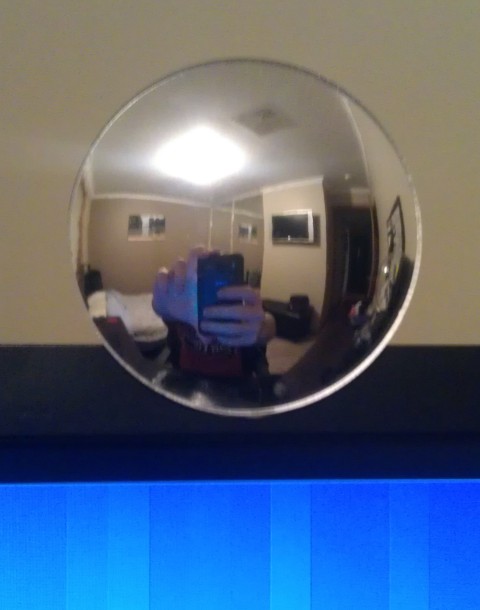
A while ago I invested in a convex mirror designed to go on your computer screen so you can see who's coming up from behind.
Well, with a 24-inch screen and deep concentration, this small mirror doesn't catch me eye at all, so I still hit the ceiling when someone taps me on the shoulder.


For my birthday I got this amazing Astro A40 headset. Sound clarity is absolutely stunning, they are really comfortable to wear and they block out a lot of surrounding background noise.
While I absolutely love the headset and wear it all the time, you can probably guess this adds to my jumpy-ness!

So I finally found a solution!

There is a package in the Ubuntu repositories called "motion" - which is a really simple motion detection server that utilises a webcam.
I had a look at "zoneminder" too, but it seems very over-kill for my needs.
motion will detect movement (above a configurable threshold), store "movement" snapshots and video files, log to a database and more importantly it provides a few hooks to fire commands upon events such as on_event_start, on_motion_detected, etc.

I disabled almost every option except the on_event_start hook.
This hook will execute the given command when motion has been detected after a (configurable) "gap" period of time of no motion - which I set to 10 seconds.

The command I set it to execute is this:
sudo -u steve notify-send --hint=int:transient:1 -i '/usr/share/icons/hicolor/scalable/mimetypes/text-x-apport.svg' 'LOOK BEHIND YOU!'

As mentioned in an earlier blog post, notify-send can be found in the libnotify-bin package

Note: the --hint=int:transient:1 is for Gnome-Shell which has introduced persistent notifcations and I didn't want to acknowledge a notification everytime someone walks past!

The end result of this little hack is when someone walks anywhere near my doorway, that command gets my attention with a standard Gnome-Shell notification from the bottom of the screen like this:


The reason I am using sudo here is that motion needs to be run as root, and so the notify-send command will also be run as root.
I guess because I had Unity installed before Gnome-Shell, when root runs notify-send, I get the Unity style notifications - which is still nice, but as I'm road testing Gnome-Shell, I figured I may as well use its notification look-n-feel too.

Here's what it looks like if you leave out the sudo -u steve part:


Posted by Steve at 22:30 0 comments
Labels: gnome3 , linux , ubuntu , unity , webcam Email This BlogThis! Share to X Share to Facebook
Newer Posts Older Posts Home

Blog Archive

  • ▼  2013 (4)
    • ▼  June (1)
      • Printing over previously printed characters and lines
    • ►  May (1)
    • ►  March (1)
    • ►  January (1)
  • ►  2012 (17)
    • ►  December (1)
    • ►  October (1)
    • ►  September (2)
    • ►  August (2)
    • ►  July (1)
    • ►  May (2)
    • ►  April (2)
    • ►  March (3)
    • ►  February (3)
  • ►  2011 (33)
    • ►  December (1)
    • ►  November (3)
    • ►  October (3)
    • ►  September (4)
    • ►  August (3)
    • ►  July (4)
    • ►  June (6)
    • ►  May (6)
    • ►  April (3)

Labels

android (5) apache (1) arch linux (1) arduino (1) bash (11) calendar (1) compiz (1) design (1) diff (1) email (1) gimp (1) git (3) github (2) gnome3 (1) Google (2) hacking (1) hardware (4) howto (1) htpc (1) java (1) lamp (1) linux (28) Mac (2) minecraft (2) mysql (1) netduino (1) nfs (1) parallel port (1) patch (1) photography (4) php (1) pidgin (2) printer (1) programming (6) python (1) rails (1) regex (5) review (3) ruby (3) Samsung Galaxy S3 (2) Samsung Series 9 (1) security (1) sed (3) ssh (1) sudo (1) tank (2) Toshiba Portege (1) troubleshooting (1) ubuntu (16) ui (2) unity (2) vim (5) webcam (1) websites (3) xbmc (1) xclip (1) xul (1)

Total Pageviews

Sparkline
 
Copyright (c) 2010 Steven Occhipinti. Designed by Conveyancing
High Deductible Health Insurance, Purchase Beats